Make Background Transparent – Free Online
To make a background transparent, the background has to be removed and the image saved with transparency. That is what the tool above does — in your browser, without uploading your photo.
Processed in your browser — your photo is never uploaded.
Free local removal is unlimited — no watermark, up to 1024 px on the longest side. · Sign in
Drop a photo or click to upload
JPG, PNG or WebP · up to 10 MB
How to make a background transparent
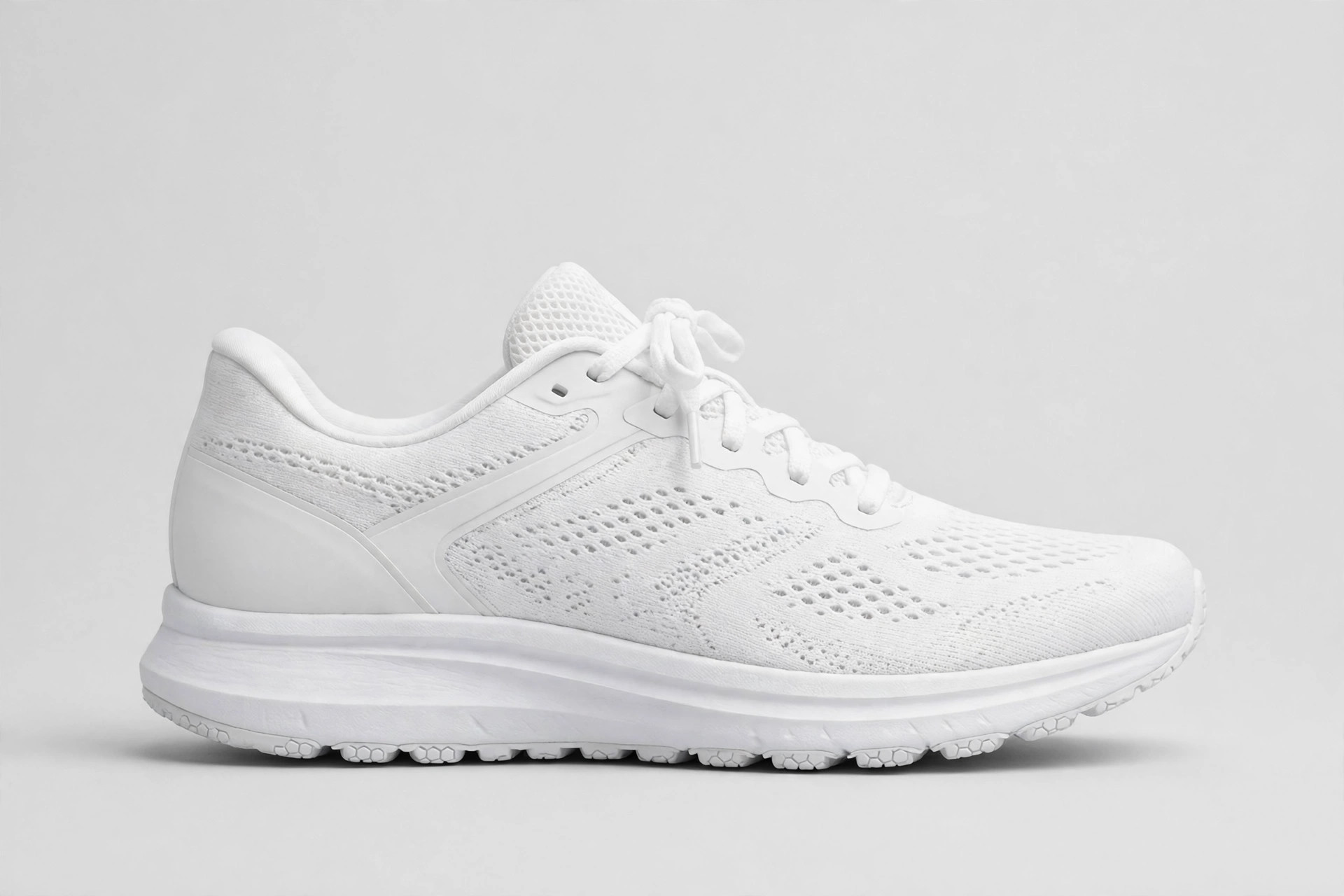
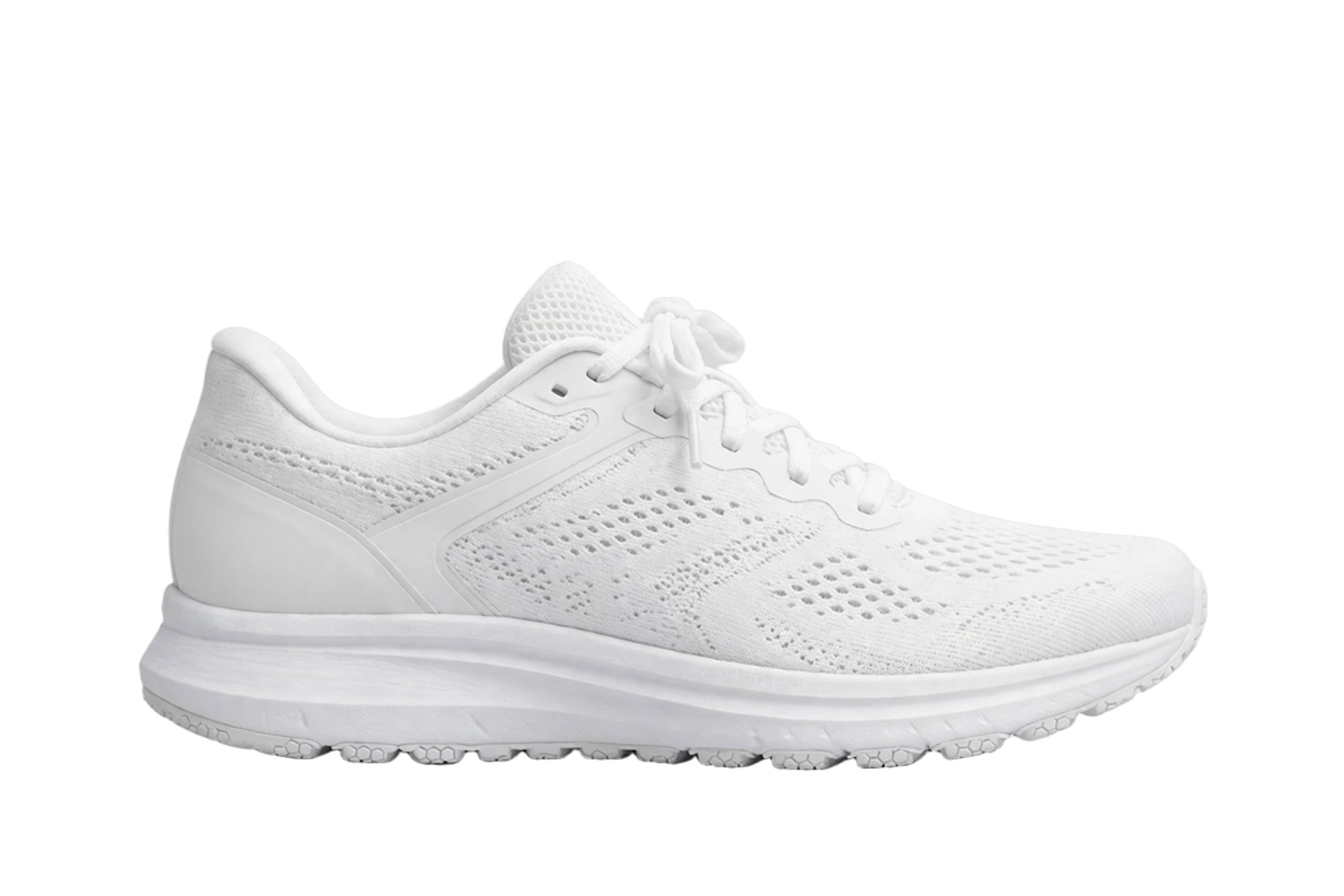
Upload your photo. The on-device model finds the subject and removes everything behind it. Preview the result on the checkerboard to see exactly what is transparent, then download the PNG.
If the first result misses an edge, try a photo with a clearer subject and a less busy background, or use cloud HD removal for the full-resolution version.
Which photos work best?
Photos with one clear subject and a background that contrasts with it work best — a product on a table, a person against a wall, a pet in a garden. Very busy backgrounds, glass and fine hair are the hardest cases.
Good light helps: a well-lit subject with sharp edges gives a cleaner cut-out than a dark or blurry photo.
What can I do with the result?
Place the cut-out on a new background: a white background for a product listing, a coloured background for a social post, or another photo for a composite. The transparent PNG blends into all of them.
You can also change the background right in the preview — transparent, white or any colour — before downloading.
Five real uses for a transparent background
Online store main images: a product cut out and placed on white — or kept transparent — works as the main image for a listing. The same cut-out goes on the listing page, in a sale banner and on social media without re-editing: one file, no white box, no second version.
Stickers: a photo of a person, a pet or an object with its background removed becomes a sticker. Download the transparent PNG and print it, or drop it into a sticker app — the cut-out keeps its shape, so the sticker has no white border around it. KillBG does not print stickers; you print the PNG yourself or use a sticker-printing service.
Slides and presentations: a speaker, a product or a diagram placed on a slide background blends into the slide instead of sitting inside a white rectangle. The same transparent PNG works on light and dark slides alike.
ID photos: an ID photo usually needs a plain background. Make the background transparent, then place the portrait on the exact background colour the issuer asks for — or download it on white if that is what is required. Check the issuer’s size and background rules first; the tool gives you the cut-out, the rules come from the issuer.
Profile pictures: a headshot with the background removed sits cleanly on any profile page, forum or chat app. Put it on a colour that contrasts with your clothes and skin tone, so the portrait stays the focus of the image.
Tricky edges: hair, fur and glass
Hair is the hardest edge because it is made of hundreds of fine strands, and loose flyaway hairs are real hair in the original photo — not a mistake by the model. The free tool draws those strands soft and light, and it softens the edge a little on purpose; cutting any harder would cut real hair too, so a few fine strands can stay visible. Preview the cut-out on a dark background, where stray hairs show up best, and try cloud HD removal at full resolution if the free result is not clean enough.
Fur and fluff have the same problem as hair: a soft, uneven edge with no single clean line. Check the outline closely in the preview, especially around ears, tails and paws. If the free result leaves a rough or patchy edge around the fur, cloud HD removal at full resolution usually does better, because it works from the original-size photo instead of the 1024-pixel free version.
Glass is the hardest subject of all, because it is see-through: the model cannot always tell where the glass ends and the background begins, and reflections on the surface make it harder still. Photograph glass against a plain background that contrasts with it, keep reflections off the surface, and check the edges in the preview. If the free result is rough, cloud HD removal at full resolution is worth a try — but some glass photos will still need a hand fix in an editor afterwards.



If the cut-out comes out wrong
First, try a better starting photo: one clear subject, fully in frame, with a plain background that contrasts with it and good light. A sharp, well-lit photo gives a cleaner edge than a dark or blurry one, and a busy background is the most common reason a cut-out goes wrong.
Second, try cloud HD removal: it processes the full-resolution photo in the cloud for 1 credit per image, and signing in gives you 10 free cloud HD removals a month. The extra detail often fixes edges the free version leaves rough.
Third, fix it by hand: download the transparent PNG and clean up the edge in an image editor such as Photoshop or GIMP. There is no manual edge tool on this site, so touch-ups happen in your own editor — erase stray pixels, soften a hard edge, or paint the background back where the model took too much.
Questions, answered
How do I make a background transparent for free?
Use the tool above: upload a photo and the background is removed in your browser, free and unlimited — no account needed. Free downloads have no watermark, but are limited to 1024 pixels on the longest side. For full resolution, sign in for 10 free cloud HD removals a month.
Can I make a background transparent on my phone?
Yes, the tool works on phones — open the site in a mobile browser, no app to install.
Does it work on JPG photos?
Yes. Upload JPG, PNG or WebP up to 10 MB. The result is always a transparent PNG (or WebP if you choose it), because JPG cannot store transparency.
My photo has a busy background — will it still work?
Often yes, but busy backgrounds are harder. If the free result is rough around the edges, try cloud HD removal, which processes the full-resolution image in the cloud for 1 credit.
Does a transparent background work in PowerPoint and Google Slides?
Yes. Insert the transparent PNG into the slide like any image. It blends into the slide background instead of sitting inside a white rectangle, and it works on light and dark slides alike.
How do I turn a photo into a sticker?
Remove the background, download the transparent PNG, and print it or drop it into a sticker app. The cut-out keeps its shape, so the sticker has no white border. KillBG does not print stickers — you print the PNG yourself or use a sticker-printing service.
Why does hair look fuzzy in my cut-out?
Loose flyaway hairs are real hair in the original photo, not a mistake by the model. The free tool draws them soft and light, and the built-in edge softening can only do so much — cutting harder would cut real hair too. If the free result is not clean enough, try cloud HD removal at full resolution.
Can I fix a rough edge myself?
Yes. Download the transparent PNG and clean up the edge in an image editor such as Photoshop or GIMP — erase stray pixels or soften the edge by hand. There is no manual edge tool on this site, so the fix happens in your own editor.
Does it work on glass and transparent objects?
Glass is the hardest case: because glass is see-through, the model cannot always tell where the glass ends and the background begins. A photo against a plain, contrasting background works best. Check the edges in the preview, and try cloud HD removal at full resolution if the free result leaves a rough edge.