Make Image Transparent – Transparent Image Maker
To make an image transparent is to remove its background so only the subject is left, saved as a PNG with a transparent background. It takes seconds here: upload the photo, the background is removed in your browser, and you download the result — free, unlimited, no watermark, up to 1024 pixels on the longest side.
Processed in your browser — your photo is never uploaded.
Free local removal is unlimited — no watermark, up to 1024 px on the longest side. · Sign in
Drop a photo or click to upload
JPG, PNG or WebP · up to 10 MB
What does it mean to make an image transparent?
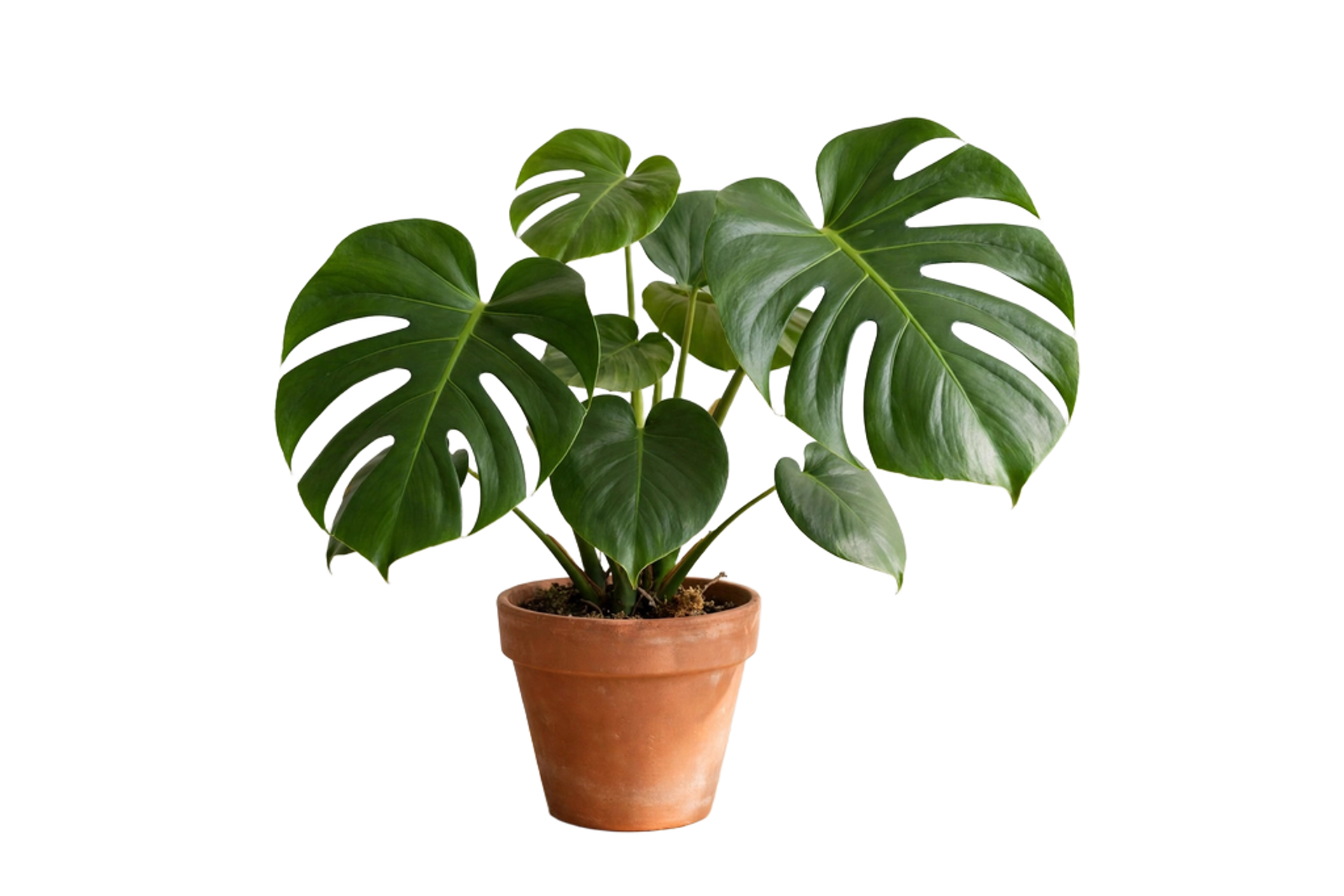
A transparent image has no background at all — the pixels behind the subject are see-through, so the image blends into any page, slide or design you put it on. That is different from a white background, which is a finished look: white pixels are still pixels, and they show as a white box on any background that is not white.
The file format matters. PNG and WebP support transparency; JPG does not — a JPG can never be transparent, it always has a solid background. So making an image transparent always ends with a PNG or WebP download. KillBG downloads a transparent PNG by default, with WebP as an option.
How to make an image transparent
Upload the image in the tool above: drag it in, pick it with the file picker, or paste it with Ctrl+V. JPG, PNG and WebP all work, up to 10 MB.
The background is removed in your browser by an on-device model — the image is never uploaded, and nothing is installed. The first time, the model downloads once and is then cached.
Drag the slider to compare before and after, preview the cut-out on transparent, white or any colour, then download the transparent PNG. Free downloads have no watermark and are limited to 1024 pixels on the longest side.
Need the full resolution? Sign in for 10 free cloud HD removals a month, or use cloud HD removal at 1 credit per image. Cloud HD keeps the original size and downloads without a watermark.
Three examples that work well
A product photo for a listing: a sneaker photographed on a plain background becomes a clean cut-out you can place on white for the listing, or on any colour for a banner. The same file works in both places because the background is transparent, not painted white.
A portrait for a profile or a slide: the person is cut out with hair edges kept, so the photo sits naturally on a coloured slide background instead of inside a white box.
A logo for a website: a logo with its background removed becomes a transparent PNG that sits cleanly on a light header and a dark footer alike — one file, no white box, no second version.
Transparent image maker: five photos that work, and one export mistake to avoid
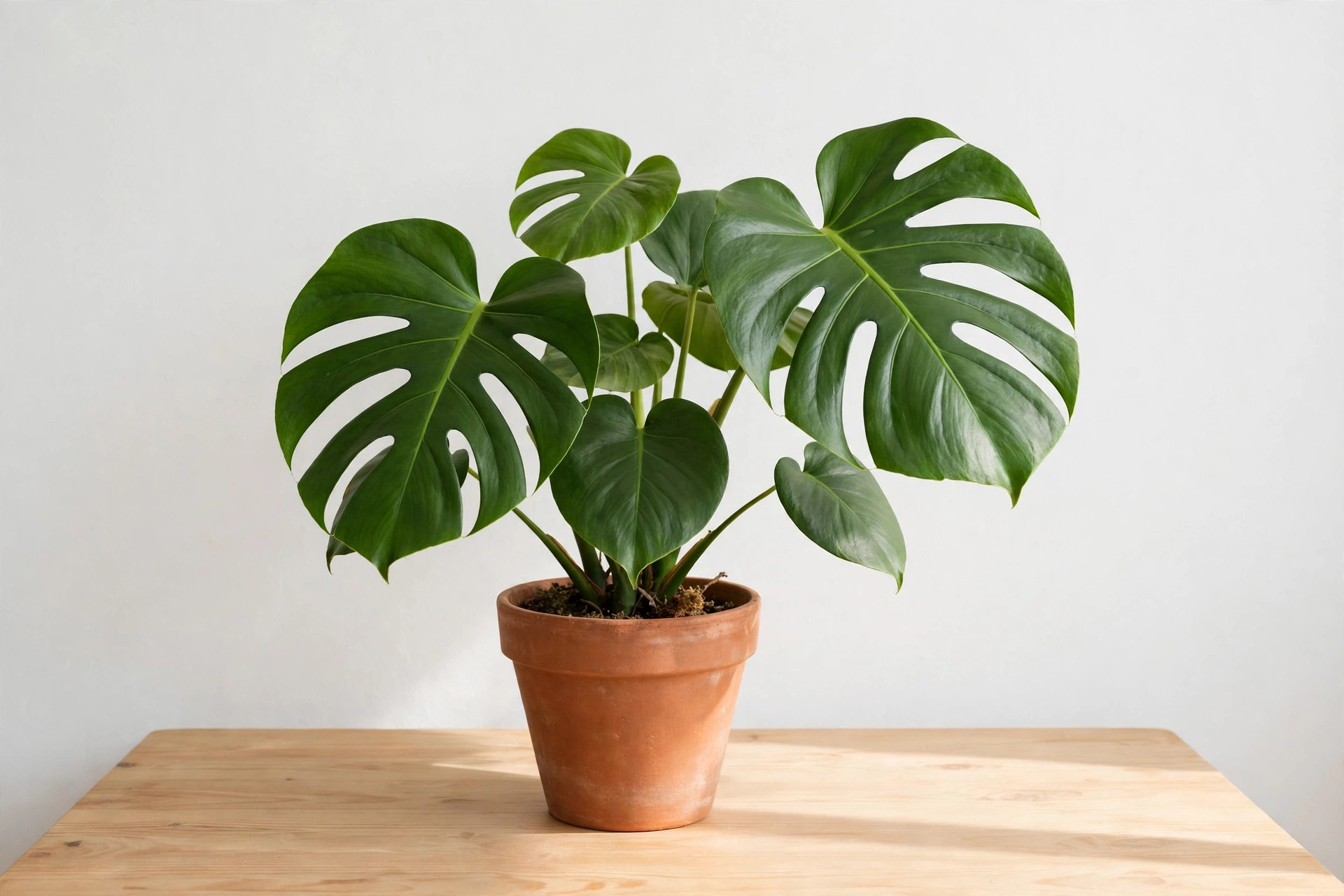
A transparent image maker turns five kinds of photos into transparent images: product photos for listings, portraits for profiles and slides, logos for websites and packaging, pet photos for stickers and posts, and everyday objects — a mug, sunglasses, headphones, a plant — for designs and thumbnails. In each case the work is the same: upload the photo, remove the background in your browser, and download the transparent PNG. The free version is unlimited with no watermark, up to 1024 pixels on the longest side; cloud HD removal keeps the full resolution at 1 credit per image.
One export mistake ruins the transparency: saving the result as a JPG. JPG has no alpha channel, so it cannot hold transparency at all — when a transparent image is saved as a JPG, the transparent areas have to be filled with a solid colour, and most tools fill them with white while some fill them with black. KillBG downloads PNG or WebP, both of which keep transparency; it never downloads a JPG. If you need a JPG in the end, place the cut-out on the background you want first — white, black or any colour — and then save: the JPG will carry that solid background, not transparency.
Common mistakes
Saving the result as a JPG: JPG has no transparency, so the background comes back as solid white. Always download PNG or WebP.
Starting from a tiny or blurry photo: the cut-out can only be as good as the original. A sharp photo with the subject fully in frame and a background that contrasts with it gives the cleanest edge.
Expecting a perfect edge on every photo: hair, fur, glass and thin objects are the hardest. Check the edges with the compare slider before downloading, and try cloud HD removal at full resolution if the free result leaves a rough edge.
Forgetting the free size limit: free downloads are capped at 1024 px on the longest side. That is plenty for a website, a slide, or a social post, but if you enlarge a 1024 px cut-out to fill a poster or a large print, the edges will soften and fine detail will blur. Use cloud HD removal at full resolution for anything that will be printed or shown large — 1 credit per image, or use the 10 free cloud HD credits that come with signing in each month. And check the background preview before downloading: the checkerboard shows transparency, white shows a listing look, and a dark colour exposes faint white fringes around the subject that are invisible on white.
Questions, answered
Which photos work best for making transparent?
A sharp photo where the subject is fully in frame and stands out from its background. Product shots, portraits and logos are the easiest. Hair, fur, glass and thin objects are the hardest edges — check them with the compare slider before downloading.
Can I make a picture transparent on my phone?
Yes. KillBG runs in the browser on iPhone, Android and desktop — nothing to install. Open the site, upload from your camera roll, and download the transparent PNG.
Is my photo uploaded anywhere?
No. The background is removed by a model running in your browser, so your photo never leaves your device. The model downloads once the first time you use it and is then cached.
What can I do with the transparent image afterwards?
Place it on any background: a slide, a website, a thumbnail, a sticker or a social post. A transparent PNG works in PowerPoint, Google Slides, Canva, Photoshop and Figma — anywhere that accepts PNG.
What if the edges look rough?
Check them with the compare slider first. Hair, fur and glass are the hardest edges. If the free result is rough, try cloud HD removal at full resolution — 1 credit per image, and signing in gives you 10 free cloud HD removals a month.