Make Background White – Free Online, No Sign-Up
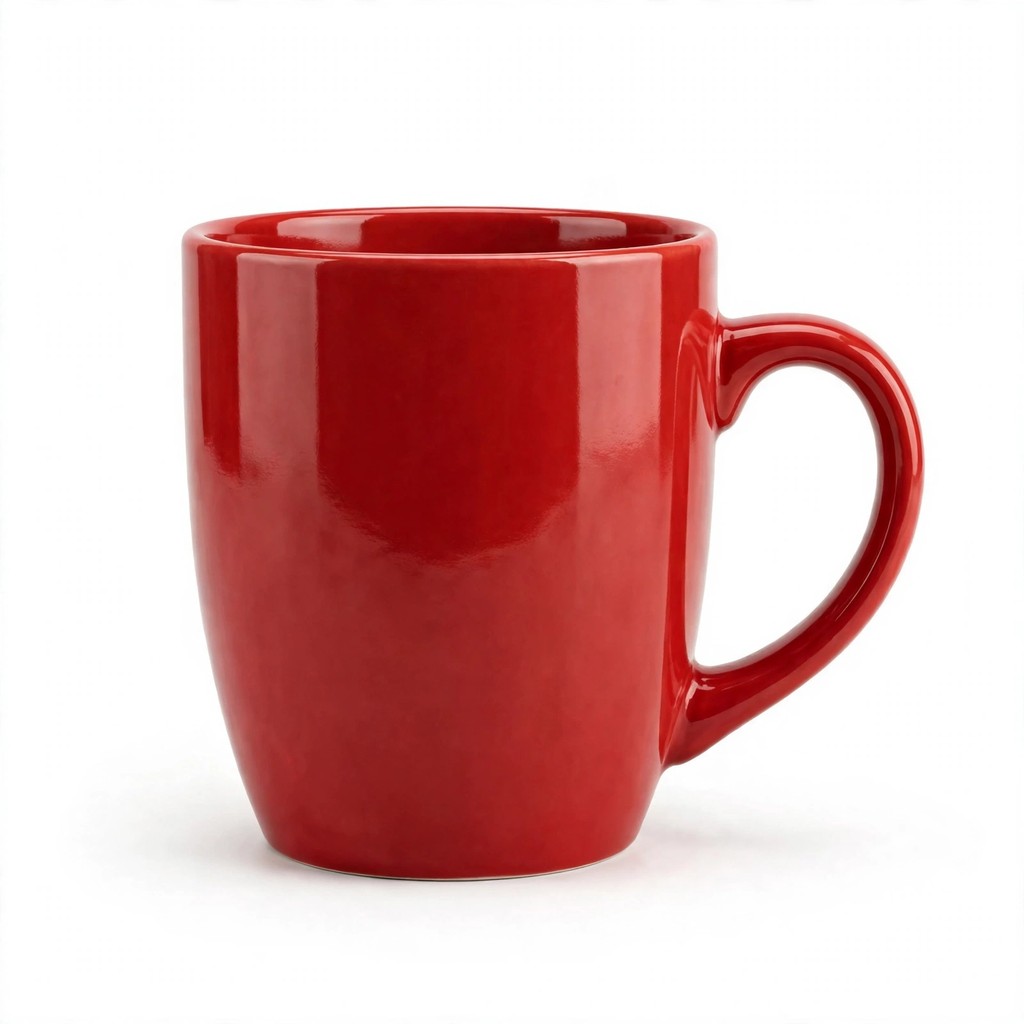
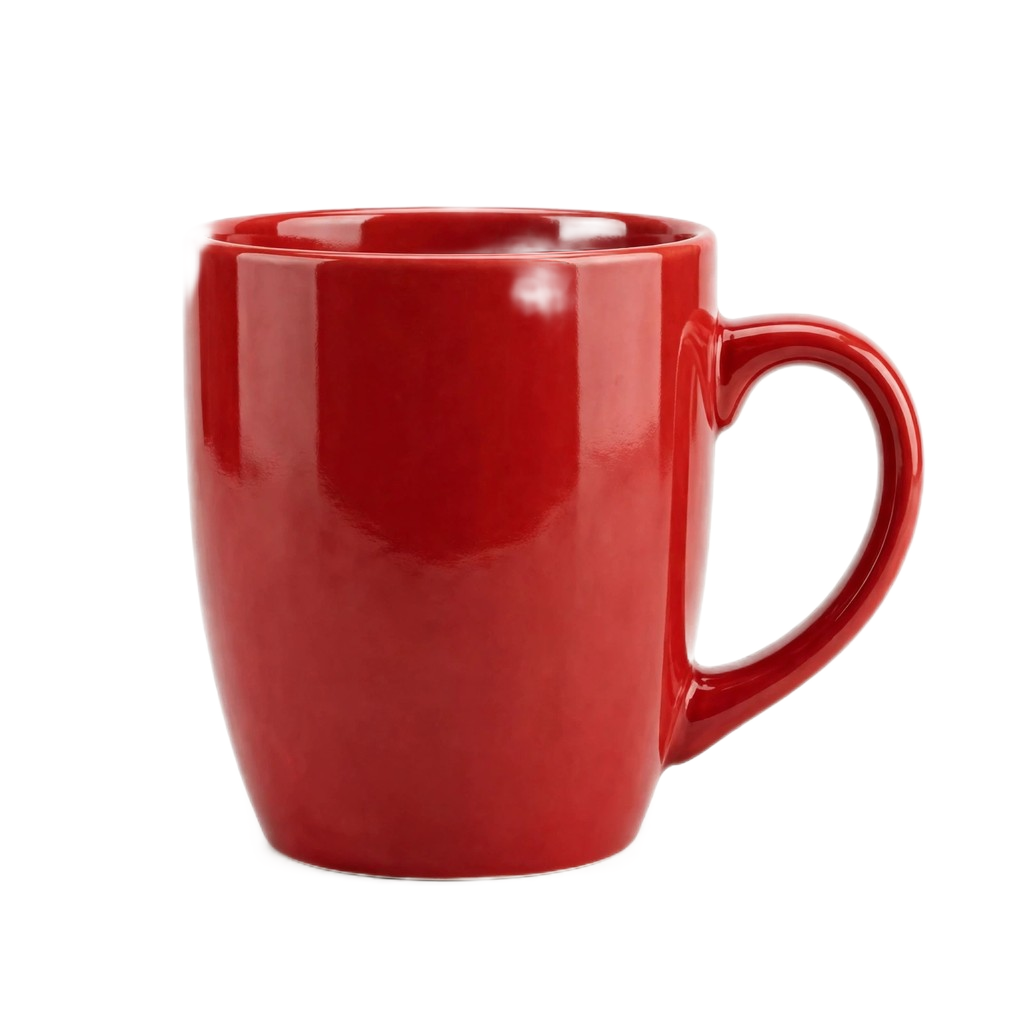
A plain white background keeps the focus on the product and makes a listing look consistent. This tool removes the background from your product photo and shows the product on white — ready to download.
Processed in your browser — your photo is never uploaded.
Free local removal is unlimited — no watermark, up to 1024 px on the longest side. · Sign in
Drop a photo or click to upload
JPG, PNG or WebP · up to 10 MB
Why a white background for product photos?
A white background removes distractions, makes products comparable at a glance, and keeps a shop looking tidy when photos come from different shoots. It is the default look for product listings.
It also makes the product easy to reuse: the same cut-out works on a listing, a social post or a slide without clashing with the page behind it.
How to put a product photo on a white background
Upload the product photo in the tool above. The background is removed in your browser; switch the preview background to white to see the product on white, then download the PNG.
Download the transparent PNG if you want to place the product on other backgrounds later, or download it on white for a finished listing image.
White background or transparent background: how to choose
Pick a white background when the photo is finished — a product listing, a catalogue, a document. White is a uniform look: every photo in the shop looks the same, and nothing competes with the product.
Pick a transparent PNG when the same image has to work in more than one place — a listing, a banner, a slide, a social post. Transparency is part of the file, so the product blends into any background without a white box.
You do not have to decide before you download: the tool previews the cut-out on transparent, on white, or on any colour, and you can download the transparent PNG and place it on white later — or download it on white straight away for a finished listing image.
Tips for a clean product cut-out
Photograph the product against a plain, contrasting background with even light and sharp focus — the cleaner the original, the cleaner the edge. Keep the whole product in frame with a little space around it.
Avoid shadows across the product and glossy reflections on the surface: both can confuse the cut-out. If the free result is rough, try cloud HD removal at full resolution.
When you need a plain white background
Not every photo is a product photo. A plain white background is also what ID photos, marketplace main images and resume headshots have in common: a clean, neutral background that keeps the focus on the subject and meets someone else’s rules.
Marketplaces ask for it: seller platforms such as Amazon and eBay want the main listing image on a plain white background, so every product in the search results looks the same and buyers compare products instead of backgrounds. Amazon requires a pure white background for the main image; eBay recommends a clean white background for it.
ID photos and resumes need it too: an ID photo usually has to sit on a plain white or light background, and a resume headshot looks most professional on white. The sections below cover each case — including what to check before you download. In each case the workflow is the same: upload the photo, remove the background in your browser, preview the cut-out on white, and download — the tool never changes your original photo.
Add white background to photo
Adding a white background to a photo means removing the old background and putting the subject on white. Upload any photo — a product, a portrait, a pet — and the tool removes the background in your browser. Switch the preview background to white to see the subject on white, then download.
Download the transparent PNG if you want to place the subject on other backgrounds later, or download it on white for a finished image. The free version is unlimited with no watermark, up to 1024 pixels on the longest side; cloud HD removal keeps the full resolution at 1 credit per image.
White background photo editor
This site works as a white background photo editor that runs entirely in your browser — nothing to install. Upload a photo, remove the background with the on-device model, and preview the result on white, transparent or any colour before downloading.
It is free and unlimited for one photo at a time, with no watermark and no account needed. For a whole set of photos, bulk removal handles up to 10 images at once in the cloud at 1 credit per image and downloads them as one ZIP.
Because the background is removed rather than painted over, the white you download is a clean finish: the subject keeps its edges and there is no leftover scenery behind it. Check the edges on the checkerboard preview first — a faint fringe that is invisible on white shows up on dark colours.
Passport photo white background
A passport photo usually needs a plain white or very light background, with the face centred and fully visible. Make the background transparent first, then place the portrait on white — or download it on white straight away for a finished photo.
Start from a sharp, well-lit headshot with a plain background behind you — the cleaner the original, the cleaner the white-background result.
Before you download, check the rules of the authority that will receive the photo: the size, the background colour and the head position all come from them, and they differ between countries and documents. This tool gives you the cut-out on white; it does not check your photo against any country’s passport rules, so confirm the requirements yourself before you print or submit it.
Photo background editor
The same tool is a photo background editor in the general sense: it removes the background, and you choose what replaces it — plain white, transparent, or any colour you pick. The cut-out previews on each background before you download, so you can see exactly how the finished image will look.
Use white for listings, documents and ID photos; transparent when the same image has to work on more than one background; a colour when the image is for a post, a banner or a slide. The download is a PNG or WebP, both of which keep transparency when you choose a transparent background.
Questions, answered
How do I put a product photo on a white background?
Upload the photo above, remove the background, switch the preview to white, and download. The whole thing runs in your browser and is free and unlimited — no watermark, up to 1024 px on the longest side. Sign in for 10 free cloud HD removals a month if you need full resolution.
Is a white background better than transparent?
For a finished listing image, white is the tidy choice. For reuse across pages and designs, download the transparent PNG instead — you can put it on white or any other background later.
What kind of product photos work best?
One product, centred, well lit, against a plain background. Photos with several products, transparent packaging or very fine details are harder to cut out cleanly.
Can I do many product photos at once?
Yes — use the bulk background remover for up to 10 images at a time. Bulk runs in the cloud at 1 credit per image and downloads without a watermark.